Bluetooth is increasingly being used in the role of "last meter" technology for indoor wireless universal coverage. In such scenario, ad-hoc Bluetooth networks provide simple and cost-effective intercommunication of various mobile devices, and are now targeted to support multimedia traffic. However, the of over Bluetooth is a challenging problem, partly due error and conditions. This paper examines the of Bluetooth protocol to carry video in real experimental test scenarios. The impact of interference, and transmission on the performance of video streaming over Bluetooth link are investigated. Analysis and suggestions of how the performance of the streaming can be enhanced are discussed.
Wednesday, July 2, 2008

Bluetooth mobile as a GPRS modem for laptop and desktop
In this article we show how to quickly configure your Bluetooth enabled computer to access the internet through a Bluetooth mobile phone and GPRS.
If you want a more detailed guide, look in our Bluetooth Guides where you can find a guide with full configuration, including modem installation, etc.
But Bluetooth is much easier than this. It offers a special profile that can be used to connect a computer to the internet using a mobile phone in very few clicks.
We'll show you how to use your Bluetooth GPRS mobile as a modem to access the internet on the go! In this example I'm using a computer running Windows 2000, a TDK USB Bluetooth dongle (version 1.4), and a Sony Ericsson P800. Some screens in your PC may be different, but the idea is the same! We assume your devices are already paired. If not, do it first, then come back here!
Start on My Bluetooth Places. Double-click Entire Bluetooth Neighborhood.

Find the icon corresponding to your mobile phone, and double-click it. In this case it's the P800 icon.

When the services are shown, right-click dial-up networking and select Create shortcut. A shortcut is then created on My Bluetooth Places.

Back in My Bluetooth Places you'll find the new icon corresponding to the dial-up on this mobile phone. Double-click it to initiate a connection.

The connection dialog will appear...

And you'll have to fill in the blanks with your connection details:

After completing it, hit the OK button and the connection will be established.

If you look on My Bluetooth Places again you'll see the gree icon corresponding to an active connection.
You are now able to browse the internet from your computer, collect e-mails, use ICQ and MSN Messenger. Remember that some mobile operators have a default APN that uses a private IP address range, and some software will not work (acces to VPN for instance).
In this case you'll need to find what's the APN your mobile operator makes available for direct connections to the internet, and ask for dialing instructions:
If you want a more detailed guide, look in our Bluetooth Guides where you can find a guide with full configuration, including modem installation, etc.
But Bluetooth is much easier than this. It offers a special profile that can be used to connect a computer to the internet using a mobile phone in very few clicks.
We'll show you how to use your Bluetooth GPRS mobile as a modem to access the internet on the go! In this example I'm using a computer running Windows 2000, a TDK USB Bluetooth dongle (version 1.4), and a Sony Ericsson P800. Some screens in your PC may be different, but the idea is the same! We assume your devices are already paired. If not, do it first, then come back here!
Start on My Bluetooth Places. Double-click Entire Bluetooth Neighborhood.
Find the icon corresponding to your mobile phone, and double-click it. In this case it's the P800 icon.
When the services are shown, right-click dial-up networking and select Create shortcut. A shortcut is then created on My Bluetooth Places.
Back in My Bluetooth Places you'll find the new icon corresponding to the dial-up on this mobile phone. Double-click it to initiate a connection.
The connection dialog will appear...
And you'll have to fill in the blanks with your connection details:
After completing it, hit the OK button and the connection will be established.
If you look on My Bluetooth Places again you'll see the gree icon corresponding to an active connection.
You are now able to browse the internet from your computer, collect e-mails, use ICQ and MSN Messenger. Remember that some mobile operators have a default APN that uses a private IP address range, and some software will not work (acces to VPN for instance).
In this case you'll need to find what's the APN your mobile operator makes available for direct connections to the internet, and ask for dialing instructions:
You can change the connection configuration by right-clicking My Network Places and selecting Properties. You'll find an icon named BluetoothConnection there. |
Make a Bluetooth-to-PC Connection
Coded messages, unseen radio signals , hush-hush techno jargon. These are the hallmarks of Bluetooth, the famously misunderstood short-range wireless technology—named, incidentally, after a tenth-century Danish king—that lets you connect your cell phone to a PC. But what should be a snap right out of the box requires several steps before it will even work.
Bluetooth is a bugaboo for lots of people. Why? Well, for starters, it works differently on nearly every phone, not all PCs have Bluetooth built in, and there's a mishmash of incompatible versions. Oh, and did we mention that there are multiple "stacks" for Bluetooth, such as WIDCOMM or RFCOMM? Or that a stack is pretty much the same as a driver? It's enough to make you want to plug in a USB cable. Read on as we demystify Bluetooth and explain how to make it work with popular phones. The good news: once configured, Bluetooth is pretty slick for exchanging data wirelessly.
 |
 |
 |
1 Configure Your PC
On a laptop, there's likely a Bluetooth icon that looks like a B made out of a twist tie in the system tray. Double-click it to get started.
If you use a desktop PC, you might need a Bluetooth adapter such as the D-Link DBT-120 (www.dlink.com). Plug it in and run the install disc. Start Bluetooth, and you'll see the welcome screen.
|
 |
|
2 What's Your Stack?
These next few steps differ slightly depending on your stack. A Bluetooth stack determines what your phone can do, such as sync data or serve as a Web link. WIDCOMM is common, especially on laptops. But Toshiba laptops use the RFCOMM stack, and Microsoft has a more generic stack. Fortunately, most stacks require the same basic information.
|
 |
|
3 Choose Services
You can now select which services you want to use with your phone. Just place a check next to the ones you want. The catch: When you actually "pair" your phone with your PC, there's another prompt that will let you specify which services you can really use with that phone and that stack.
|
 |
|
4 Get Connected
Now, on your phone, go to the Settings menu, enable Bluetooth, and click an option to "find me" or "pair" your phone. On your PC, your phone should appear in the Select a device screen. Select your phone and click Next. If you don't see your phone, check out the "Bluetooth Trouble" sidebar (right).
Type a code for pairing—entering the same code on both your PC and your phone, for security. This can be any number—although you might have to check the manual for a specific code. Click Pair Now. On your phone, type the same code. Now, click Yes or OK to pair the phone.
|
 |
|
5 Pat Yourself on the Back
On your PC, you'll see a screen that says which Bluetooth services are available for your phone. Select the ones you want and click Next. Congrats. You have successfully enabled Bluetooth and paired your phone.
|
 |
|
6 And Now, Get Busy
To use the Bluetooth connection on your PC, double-click the Bluetooth icon and double-click a service icon, such as My Dial-Up Networking to surf the Web or My PIM Transfer to sync contacts and other data between phone and PC.
Bluetooth wireless technology
Enter the world of Bluetooth wireless technology. No wires. No limits. Now you can sync up a compatible Bluetooth enabled phone to compatible Bluetooth eneabled laptops, headsets, car kits and PDAs, all without wires. Easily transfer and access information from up to 10 meters. Effortlessly and wirelessly answer calls. Access the Internet. Simpler, smarter and seamless.
 Headsets and Speakers
Check out another way to make your life easier; go completely wireless with compatible Motorola Bluetooth enabled handsets and accessories. They work seamlessly with compatible Bluetooth enabled devices like laptops and PDAs, freeing you from the limits of wires and cords.
 Stereo Music
Whether at home, at work, or on the go, listen to music wirelessly from your Bluetooth enabled stereo devices and never miss a call from your compatible Bluetooth enabled phone.
 Bluetooth Solutions for the Car
Communicate on the go like never before. Motorola's innovative assortment of Bluetooth enabled car kits will change the way you talk while you are in your car. Simply use your compatible Bluetooth enabled phone with any one of our car kits and keep focused while staying connected hands-free.2
 PC Connectivity
It's your phone - make it work harder! Expand and customize your Bluetooth enabled phone entertainment experience and share content with other compatible Bluetooth enabled personal electronic devices.
Software Development Kits for Bluetooth
Extended XTNDAccess Bluetooth SDK and protocol stack
- Impronto Simulator from Rococo Software runs Java applications in a simulated Bluetooth environment, allowing developers to run simply test and configure applications before deploying them on Bluetooth devices. Rococo announced in January 2002 use of Extended Systems Bluetooth development stack with its own Java Developer kit.
- Palm Inc. is shipping Bluetooth SDK (for free ) and Bluetooth HDK (Hardware Development Kit (Two Palm SDIO cards, a serial cradle, and SDIO drivers) for $199. SDK has been approved by Bluetooth SIG. SDK conforms to version 1.1 of Bluetooth specifications. SDIO stands for Secure Digital Input Output card..
- Cambridge SiliconRadio's Development kit
- Digianswer A/S Bluetooth Development PC Card for Windows CE
- Melody - Bluetooth hardware emulator - Bluetooth over IP SDK to test Bluetooth applications without hardware
- Socket Communications SPANWorks II Bluetooth SDK
- RAPPORE Technology's SDK and protocol stack for Linux embedded systems
Bluetooth Technology
"Automatic communication between various devices within a small area in a house or an office makes it possible to provide unique and innovative services to a professional worker or a small group of workers using portable devices. Bluetooth technology has this potential and is coming along fast and quick. It will replace clumsy wires, make information transfer automatic without synchronization cradles and introduce many new applications. Technology visionaries hope that it will do what infra red could not do over the past six years." - Editor

In an attempt to standardize data transfer and synchronization between disparate mobile devices in the short-distance range, Intel and Microsoft established in 1998 a major industry consortium that included IBM, Toshiba, Ericsson, Nokia, and Puma Technology.
Code-named Blue Tooth for the 10th century Danish king who unified Denmark, the companies have created a single synchronization protocol to address end-user problems arising from the proliferation of various mobile devices -- including smart phones, smart pagers, PDAs, handheld PCs, copiers, printers, notebooks, and many future digital appliances at home -- that need to keep data consistent from one device to another.
The proposed Bluetooth solutions (hardware and software-based) would automatically synchronize mobile devices when end-users enter their offices or home. Intel and others are designing the sending and receiving radio frequency chip sets. Price point for hardware is in $5-20 range eventually.
Since the start of this initiative in 1998, interest in Bluetooth has grown tremendously - signified by 1800 members of Bluetooth consortium by mid 2000.
While Bluetooth consortium demonstrated prototype products in the 1999-2000, there are no production-quality enduser products using blue tooth technology as of now, as far as we know. Component products (radios and chips) that can be integrated into finished products have started becoming available from Ericsson and others. However, here is an opportunity for more start-up companies. irDA is a competing technology and has been implemented in many products for over 6-7 years now but BlueTooth has a few distinct advantages - with Ericsson/Microsoft/Intel team behind it. In our opinion, there are relative benefits with several competing technologies - there is some overlap too. Let competitive products thrive so that we the users get the best solutions.
Operating system support


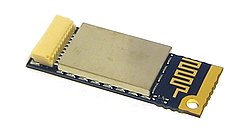

Operating system support
Apple has supported Bluetooth since Mac OS X v10.2 which was released in 2002.[5]
For Microsoft platforms, Windows XP Service Pack 2 and later releases have native support for Bluetooth. Previous versions required users to install their Bluetooth adapter's own drivers, which were not directly supported by Microsoft.[6] Microsoft's own Bluetooth dongles (packaged with their Bluetooth computer devices) have no external drivers and thus require at least Windows XP Service Pack 2.
Linux has two popular Bluetooth stacks, BlueZ and Affix. The BlueZ[7] stack is included with most Linux kernels and it was originally developed by Qualcomm. The Affix stack was developed by Nokia. FreeBSD features Bluetooth support since its 5.0 release. NetBSD features Bluetooth support since its 4.0 release. Its Bluetooth stack has been ported to OpenBSD as well.
Computer requirements
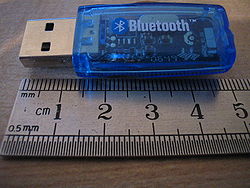
A personal computer must have a Bluetooth adapter in order to be able to communicate with other Bluetooth devices (such as mobile phones, mice and keyboards). While some desktop computers and most recent laptops come with a built-in Bluetooth adapter, others will require an external one in the form of a dongle.
Unlike its predecessor, IrDA, which requires a separate adapter for each device, Bluetooth allows multiple devices to communicate with a computer over a single adapter.
List of applications

More prevalent applications of Bluetooth include:
- Wireless control of and communication between a mobile phone and a hands-free headset. This was one of the earliest applications to become popular.
- Wireless networking between PCs in a confined space and where little bandwidth is required.
- Wireless communications with PC input and output devices, the most common being the mouse, keyboard and printer.
- Transfer of files between devices with OBEX.
- Transfer of contact details, calendar appointments, and reminders between devices with OBEX.
- Replacement of traditional wired serial communications in test equipment, GPS receivers, medical equipment, bar code scanners, and traffic control devices.
- For controls where infrared was traditionally used.
- Sending small advertisements from Bluetooth enabled advertising hoardings to other, discoverable, Bluetooth devices.
- Three seventh-generation game consoles, Nintendo's Wii, Microsoft's Xbox 360[4] and Sony's PlayStation 3 use Bluetooth for their respective wireless controllers.
- Dial-up internet access on personal computer or PDA using a data-capable mobile phone as a modem.
Bluetooth
Bluetooth is a wireless protocol utilizing short-range communications technology facilitating data transmissions over short distances from fixed and/or mobile devices, creating wireless personal area networks (PANs). The intent behind the development of Bluetooth was the creation of a single digital wireless protocol, capable of connecting multiple devices and overcoming issues arising from synchronization of these devices. Bluetooth provides a way to connect and exchange information between devices such as mobile phones, telephones, laptops, personal computers, printers, GPS receivers, digital cameras, and video game consoles over a secure, globally unlicensed Industrial, Scientific, and Medical (ISM) 2.4 GHz short-range radio frequency bandwidth. The Bluetooth specifications are developed and licensed by the Bluetooth Special Interest Group (SIG). The Bluetooth SIG consists of companies in the areas of telecommunication, computing, networking, and consumer electronics.
Subscribe to:
Comments (Atom)